.png)
Speech to text answer component
The speech-to-text answer component is only available as part of the Participation Plus+ package in certain regions or territories. If you're interested in this subscription expansion package, please contact your site admin and/or customer success manager.
In this article we’ll be looking at the speech-to-text answer component regarding:
- What is speech-to-text
- Things to know
- How it works for respondents
- How it appears in reporting and analysis
What is speech-to-text?
The speech-to-text answer component enables users to speak their answer aloud and have it automatically transcribed into the text box. This means respondents don’t need to type their answer manually, they can simply talk, and their speech is converted to written text in real time.
This component improves accessibility in Citizen Space, as users won't need to rely on having a dedicated screen reader or external assistive technology because the component itself supports direct speech recognition.
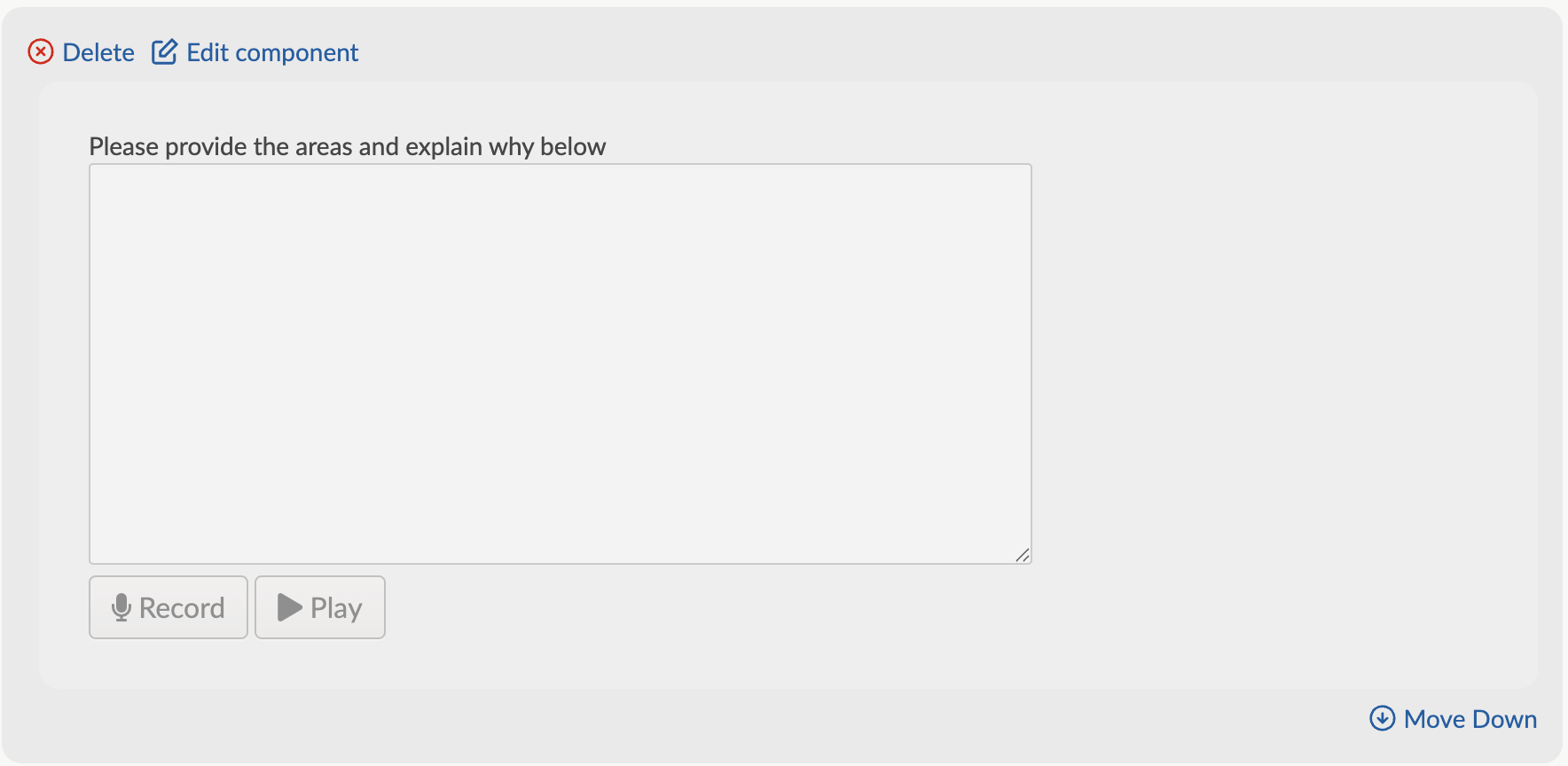
Things to know:
- To use speech-to-text, you must request for the component to be enabled by contacting your customer success manager or emailing support (support@delib.net). Once it's enabled, it'll be available site wide, and anyone who creates an activity using your Citizen Space site will have this component available for them to use.
- Speech-to-text is created for questions that require written text responses.
- It can be added as an answer component the same way other components are.
- For respondents to use speech-to-text, browser permissions for microphone access is required - users will be prompted to allow access the first time they use the feature.
- When recording, for privacy and performance reasons, respondents' original audio is not stored by Citizen Space.
- When respondents play their response back, playback uses their browser's built-in speech-to-text functionality, so the accuracy of the playback is dependent on their browser's playback feature.
- The transcript may need to be edited by respondents as it is not always 100% accurate.
- Speech-to-text is limited to the English language and cannot transcribe other languages.
Technical note: Speech-to-text uses AI, specifically a variant of OpenAI's Whisper that runs locally in the browser rather than sending the data to a 3rd party. No audio recordings are stored.
How it works for respondents
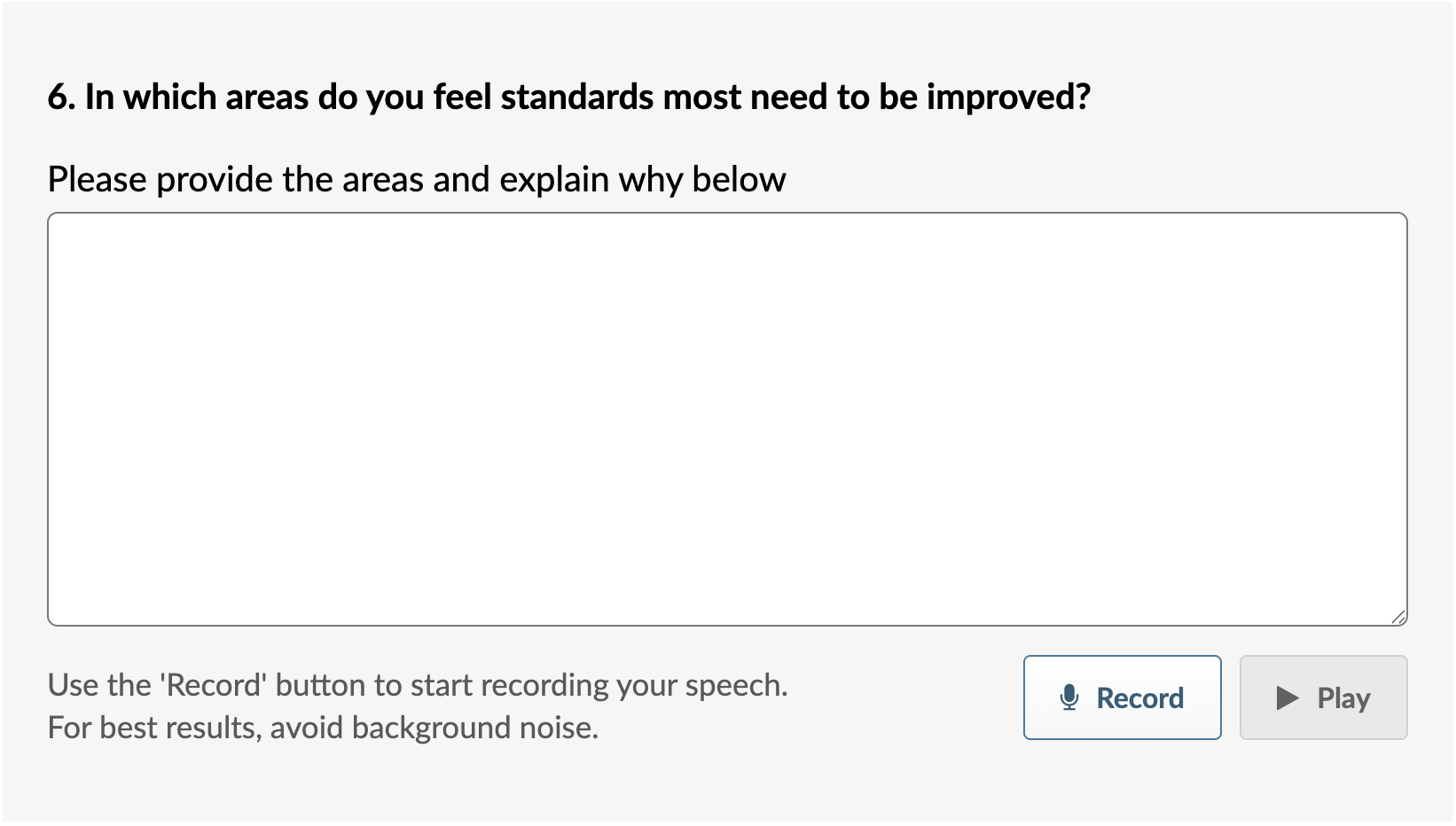
- Once respondents allow the microphone to be enabled in their browser, they can select the Record button and speak. As they speak, their response will be transcribed into the text box.
- When respondents select the Stop button, the microphone stops recording their voice.
- Even after the recording is stopped, respondents can add to their response by reselecting Record - the new recording will be transcribed on a new line in the text box, and will be recorded as a new paragraph.
- Respondents can play their response back by pressing Play - the transcribed text will be read back to them and the text will be highlighted as it's played back.
- Respondents can pause playback, as well as resume it.
- Respondents are able to playback from wherever they place their cursor in the transcript.
- Finally, respondents can manually edit (by typing) the transcribed text if needed.
Reminder: Recordings are not saved and only used for transcription purposes. The text entered into the field is the only response information collected.
Reporting and analysis
Responses captured via speech to text are stored as standard text answers in the dataset, there is no separate data format for audio.
In summary tables and exports, the user’s transcribed text appears just as if they had typed it.
This makes analysis straightforward and aligns with how text-based answers are handled throughout reporting tools.